Assets
eazyBI for Jira
This page shows how to import data from the Assets objects schema as a separate data source application. If you want to import Assets custom fields for issues, follow instructions for data import from Assets custom fields.
You can use eazyBI to analyze Assets objects by selected object attributes. eazyBI recommends creating a separate eazyBI account for Assets data import to avoid conflicts with dimension names from other data cubes. You can import only one Assets schema objects in one eazyBI account. Please create separate eazyBI accounts for each Assets schema you would like to import data.
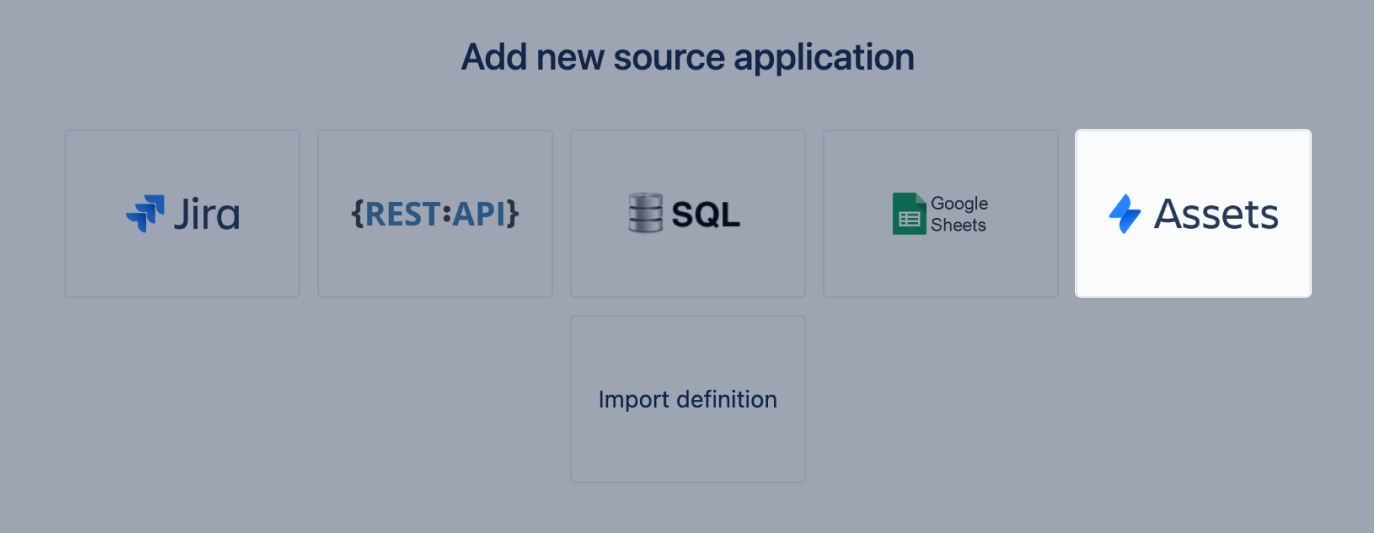
If Assets is installed, you can see Assets available as a new source application in the eazyBI Source Data tab:
On this page:
Jira Cloud access
If the Assets data source or Assets custom fields are not available in eazyBI for Jira Cloud, check the Atlassian IP allowlist settings. If this option is enabled, add the eazyBI IP addresses to the allowlist to import data from Assets.
- 130.211.91.121
- 35.233.55.20
- 35.189.226.204
- 34.78.73.253
- 34.79.105.176
- 34.79.58.191
Import options
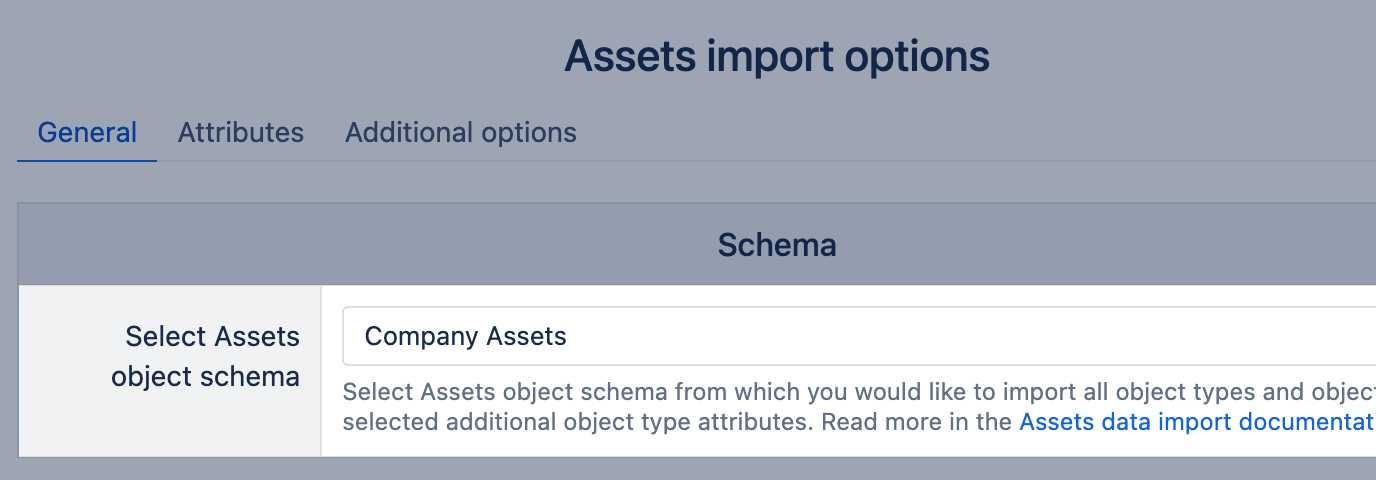
After selecting the Assets data source, you will see the import options page. There, you can select the Assets object schema from which you would like to import all objects. To analyze data from other Assets schemas, create separate eazyBI accounts.
Object Statuses and history
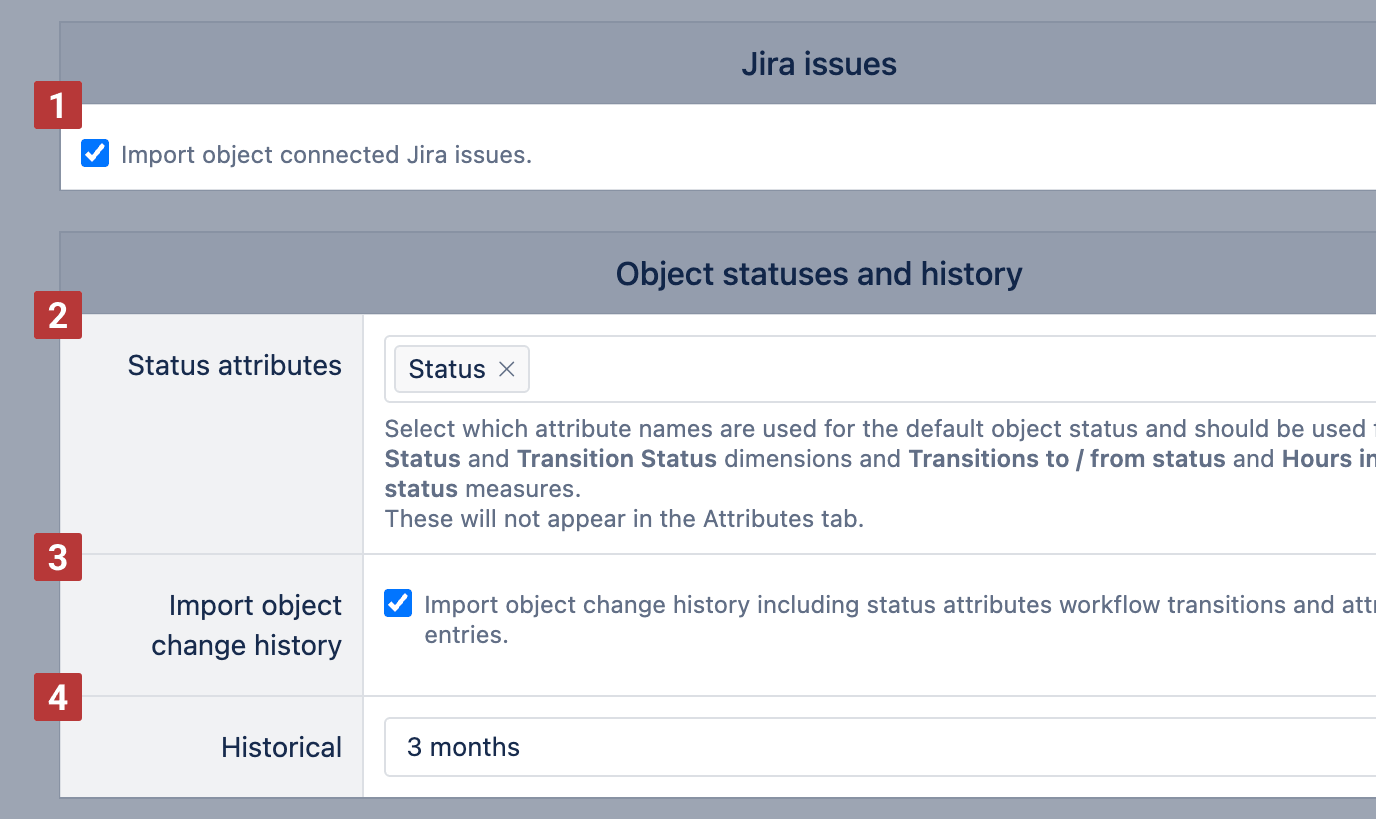
Select the Import object connected Jira issues [1] option to import Jira issues connected to the Assets objects. eazyBI will import the Jira issues linked to objects via Assets custom fields. Use with issue-specific dimensions and measures.
In Object Status [2], select which attributes should eazyBI import as default status attributes (see below the description of dimensions and measures based on the default status attributes). Attributes selected here won't be available for import again in the Object Type attribute options.
Select Object history [3] if you want to import object change history. With the change history selected, you can limit the history period with the Historical [4] option. eazyBI will import Object history data if it is within the set period. If there is no limit set, then all history data is imported.
Regular import frequency
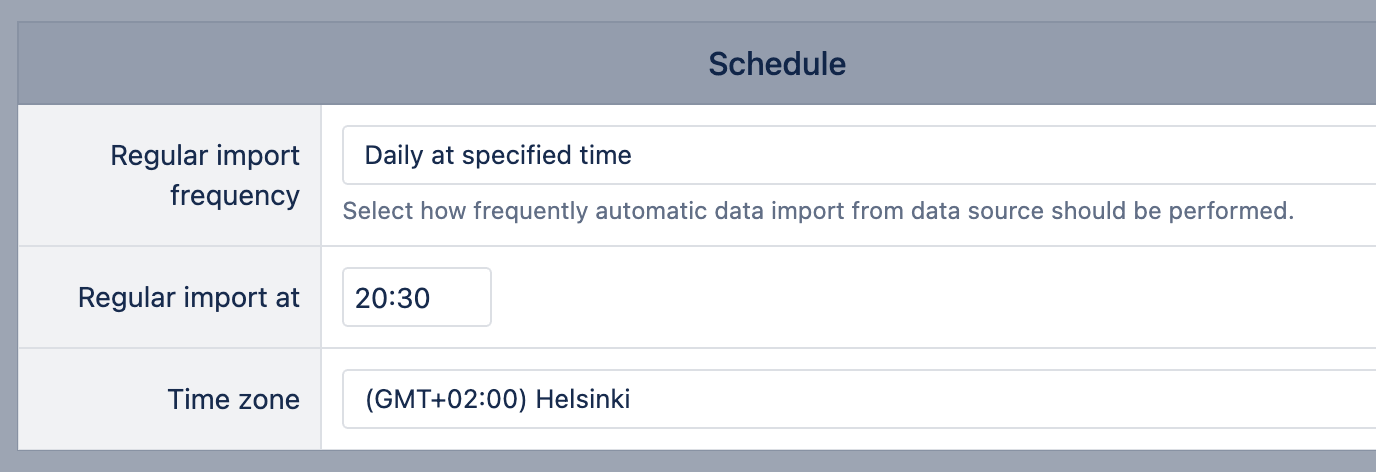
Specify the regular import frequency for the automatic data import. The initial data import will perform a full import of all schema objects. The subsequent imports (if import options are not changed) will be incremental and will process only the created and updated objects.
- Default (every day): next import is 24 hours after the previous successful import.
- No regular import: eazyBI won't automatically refresh data, but you can manually run a data import.
- Daily at a specific time: perform data import at a specific time of day in the selected time zone.
- Custom cron schedule: specify a customized schedule using a cron expression. This option is available on Cloud and since eazyBI version 9.0.
Object type attributes
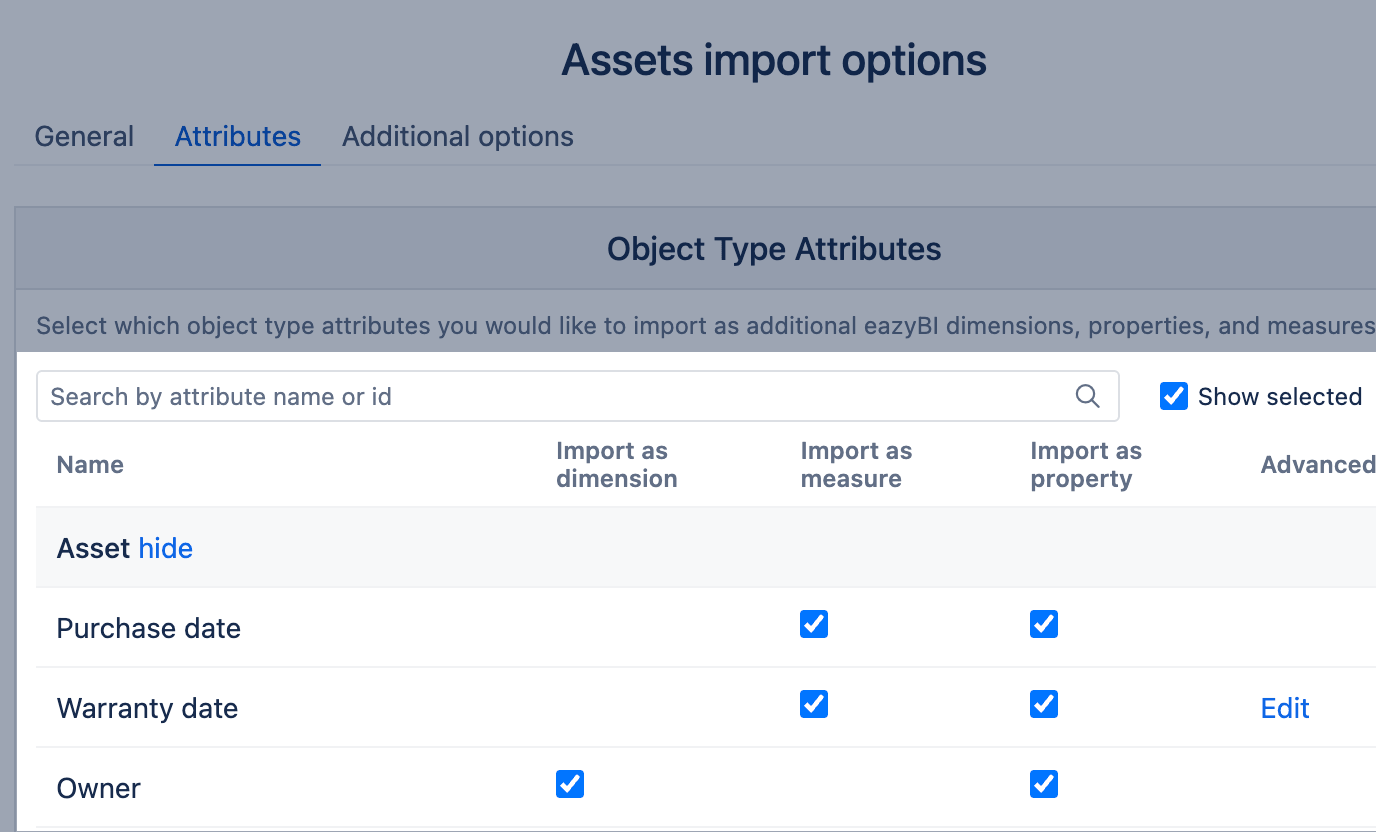
In the Attributes tab, Select Assets object type attributes for import. Object key, name, and status attributes are imported by default. The other attributes are grouped by object types:
Depending on the attribute type, you can import them as dimensions, measures, and properties:
- List-of-value type attributes (object references, users, user groups, projects, versions, select lists, additional statuses) can be imported as dimensions.
- Numeric and date fields can be imported as measures.
- Any attribute can be imported as the Object dimension member property.
You can modify the import options for the Assets object attributes, for example, changing the display name or data type. This option is available on Cloud and since eazyBI version 9.0.
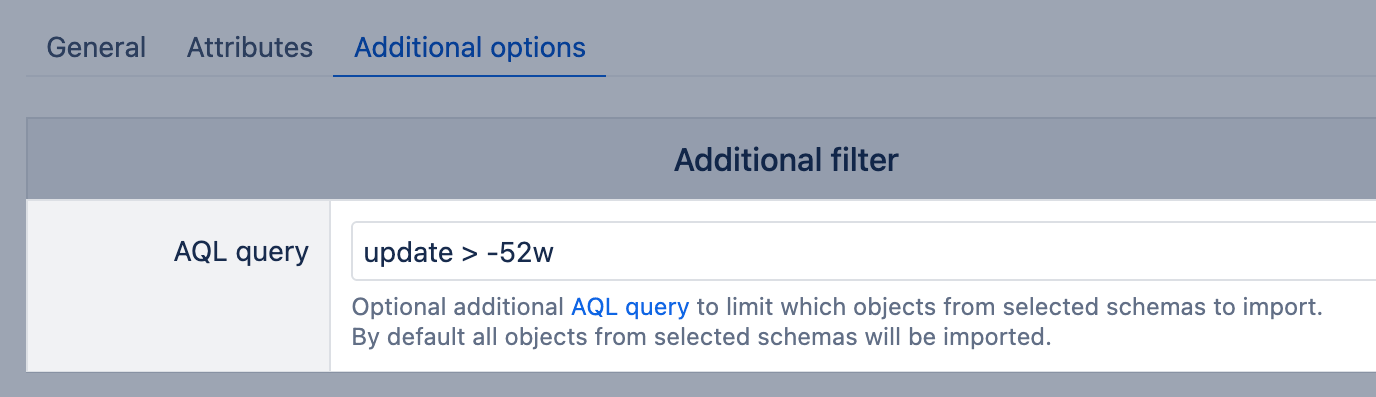
Additional filter
In the Additional options tab, you can specify an AQL query filter limiting which objects are imported to reduce imported data and analyze a subset of objects from the selected schema.
Time dimension
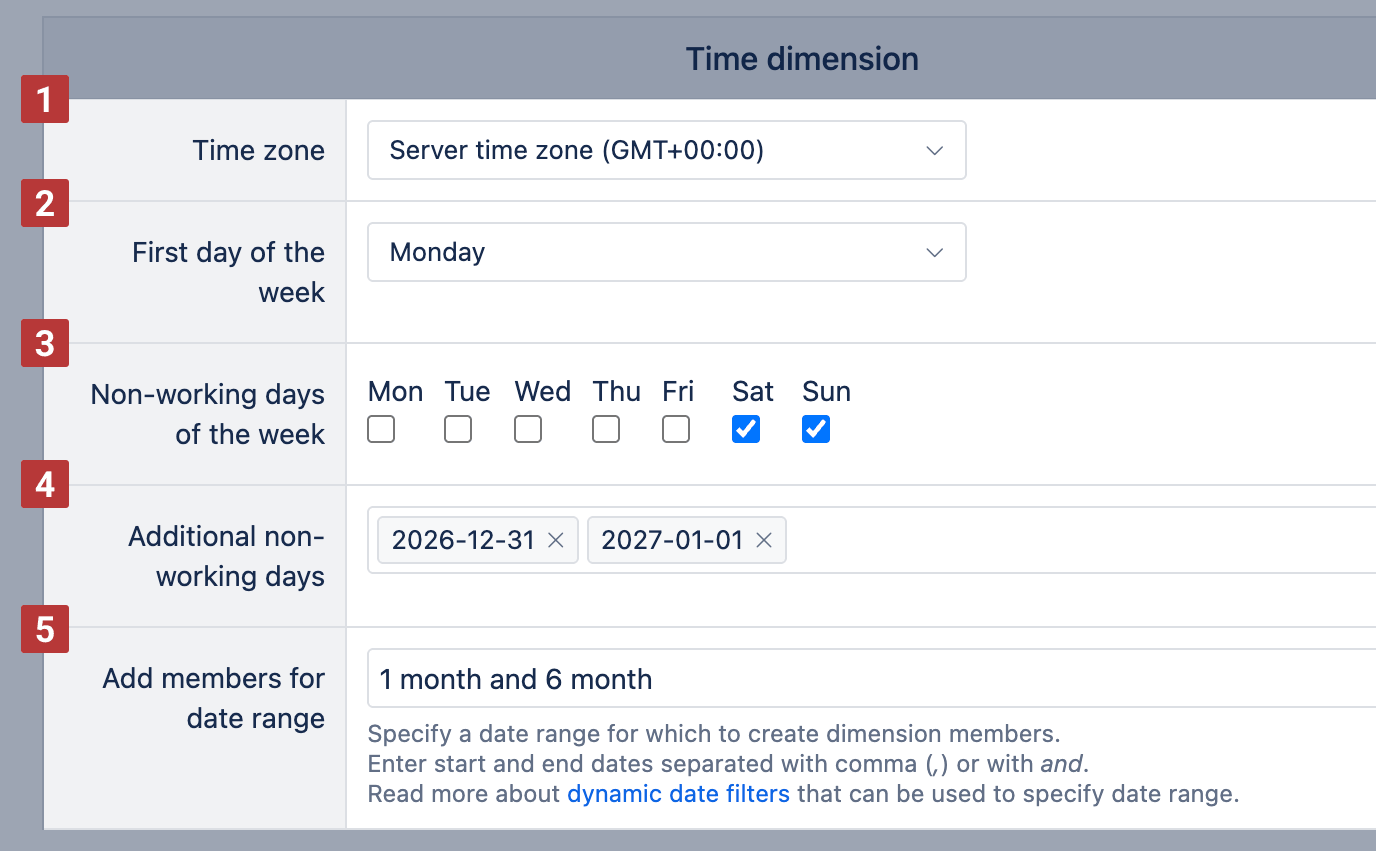
In the Additional options tab, you can specify the time zone [1], the first day of the week [2], and non-working days [3] [4] of the Time dimension.
You can use only one time zone in each eazyBI account. The time zone of the Time dimension will be used to determine the date member in the Time dimension when importing object measures (e.g. Objects created, Objects changed, and others) and object properties. If a time zone is not specified, then the default Jira server time zone will be used. If a different time zone will be selected, then all date timestamps will be converted to this time zone.
The first day of the week [2] is used for the Time dimension Weekly hierarchy and also Week Day dimension.
Non-working days (standard non-working days of the week and additional non-working days/holidays) will be used for DateDiffWorkdays and DateAddWorkdays MDX functions as a default non-working days argument.
If you have a long list of additional non-working days [5], then you can copy the list and paste it into the time dimension options for other eazyBI accounts.
Because each eazyBI account has one Time dimension, don't use other data sources with different Time dimension settings in the same account.
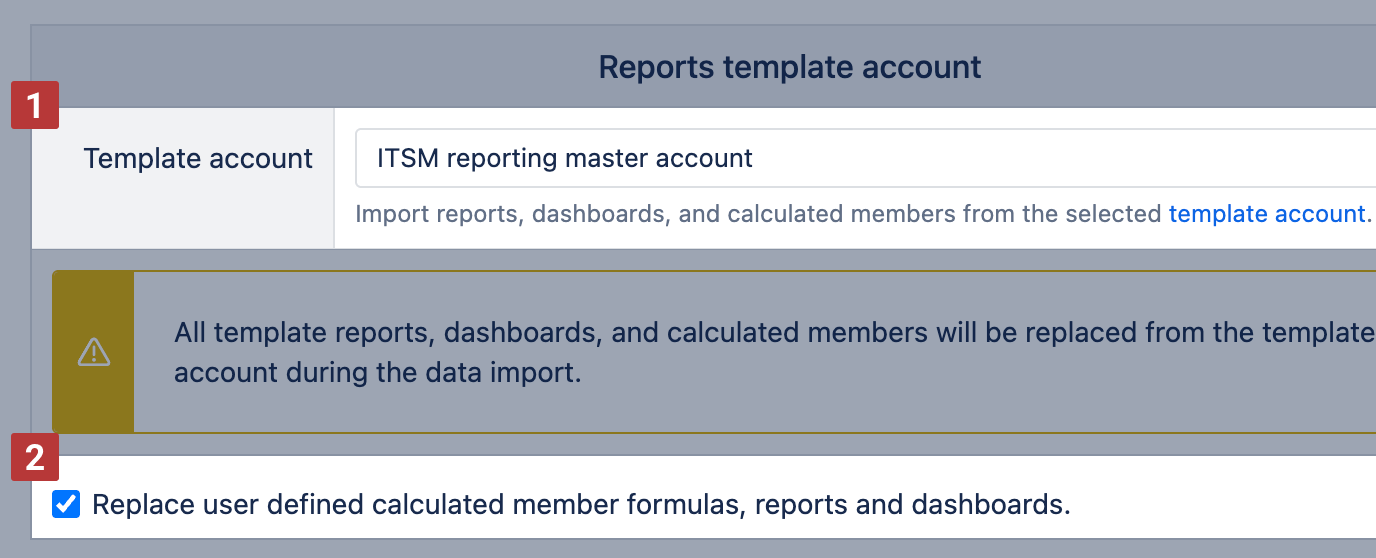
Template account
In the Additional options tab, select Template account [1] to import reports, dashboards, and calculated measures defined in a common template account. You can override [2] existing reports, dashboards, and calculated measures with reports, dashboards, and calculated measures from the template account.
Dimensions
The following standard dimensions will be created after data are imported.
Object Type | All object types with objects. |
|---|---|
Object Status | Current status of objects. It is based on the first object attribute that has a Status type and has a name from the Status attributes import option. |
Object | List of all individual objects, grouped by the Object Type hierarchy level. Use this dimension when creating detailed reports with individual objects and their properties. There is an option to create custom hierarchies in the Object dimensions with the Add custom hierarchy option. It is possible to create a hierarchy based on Object attribute properties. |
Object History Type | The type of object history entries (Added Value, Changed Value, Deleted Value etc.). Use to analyze Object history changes and Objects changed measures. |
Object History Actor | The author (user or automated system) of object history entries. Use to analyze Object history changes and Objects changed measures. |
Object History Attribute | The attribute which was changed in object history entries. Use to analyze Object history changes and Objects changed measures. |
Object Transition Status | All statuses that appear in the default status attribute changes (the same statuses as in Object Status dimension based on the Status attributes import option). Use to analyze Transitions to status, Transitions from status, Hours in transition status measures. |
Object Transition | All individual status transitions with names in the format “From status => To status”. Use to analyze Transitions to status, Transitions from status, Hours in transition status measures. |
Jira Issue | Jira issues linked to objects via Assets custom fields. There is an option to create custom hierarchies in the Jira issue dimension with the add custom hierarchy option. It is possible to create a hierarchy based on Jira issue default properties (Issue type, Status, Priority) or properties imported with additional data import. |
Time | The standard time dimension with a Year / Quarter / Month / Day hierarchy and a Year / Week / Day hierarchy. |
In addition, dimensions for selected object type attributes will be created.
Delete members without data
You can delete members without data from dimensions in the Assets cube only on eazyBI for Jira Cloud and since eazyBI version 8.1.
You can delete members without data from the Assets cube for all dimensions except the Object dimension.
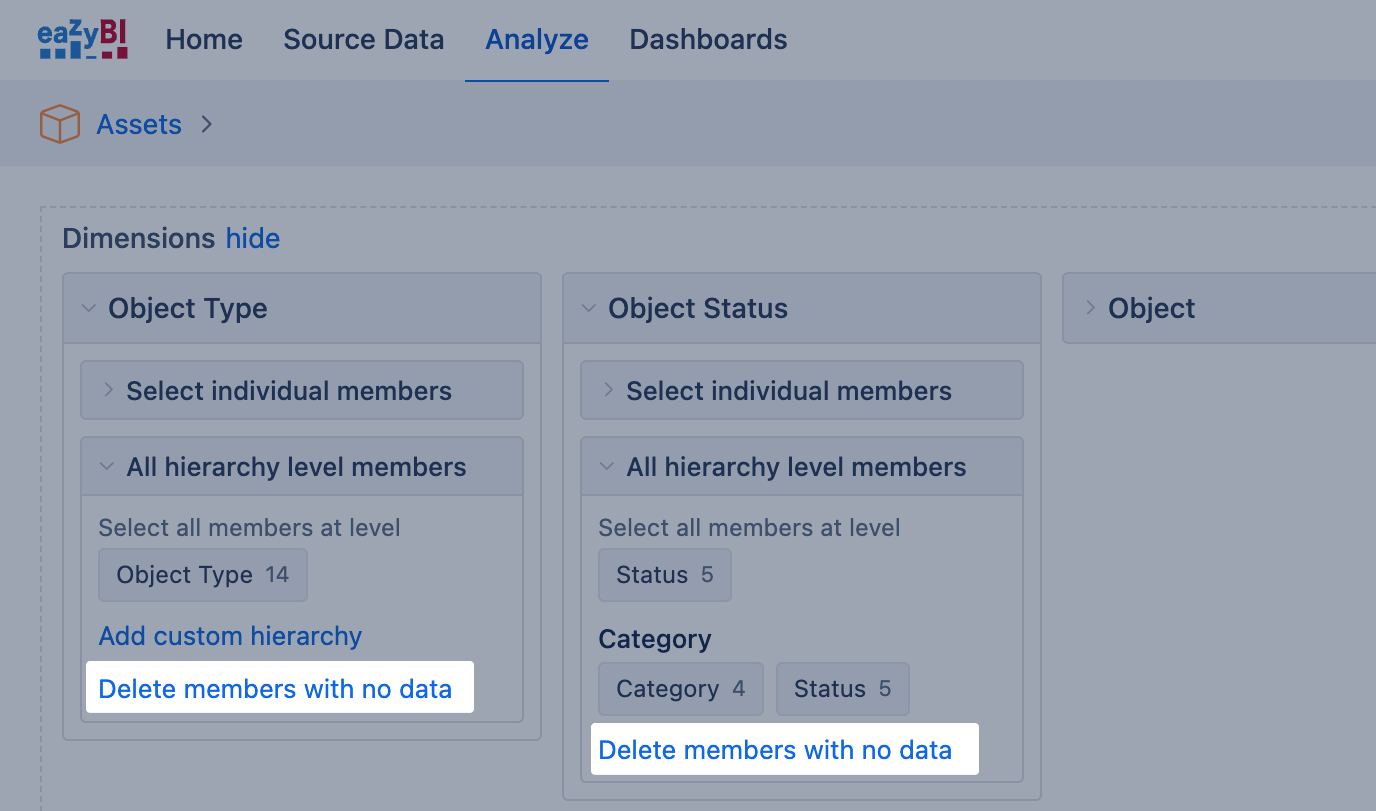
Deleting members without data requires a data admin user role or higher.
Measures
The following standard measures will be created after data are imported.
Objects created | Total number of created objects that match selected dimension members. You can get the detailed list of objects from this measure using the Drill through object option. |
|---|---|
Object history changes | Count of object history entries that show the number of times the objects were changed. Can be filtered by Object History Type, Object History Actor, Object History Attribute and Time dimensions, as well as by any other dimensions (the other dimensions are based on the current attribute values of objects). |
Objects changed | Similar to the previous but shows the unique count of objects that have these history changes. |
Transitions to status | How many times during the selected Time dimension period the object status has been changed to the status that is selected in the Object Transition Status dimension (or only transitions that are selected in the Object Transition dimension). |
Transitions from status | How many times during the selected Time dimension period the object status has been changed from the status that is selected in the Object Transition Status dimension (or only transitions that are selected in the Object Transition dimension). |
Objects in transition status | How many objects when in the selected status of the Transition Status dimension at the end of the selected Time dimension period. |
Average hours in transition statusAverage days in transition status | Average hours/days that issue stayed in the status that is selected in the Transition status dimension. |
Transition to status first dateTransition to status last dateTransition from status first dateTransition from status last date | The date and time when the first/last transition to/from the corresponding Transition Status (or the selected Transition) was performed. |
Hours in transition status | The total number of hours that objects have stayed in the status selected in the Object Transition Status dimension. It is calculated when the object status is changed from this status to a different status (when the Transitions from status measure is recorded) and will be shown on the Time dimension on the date when the transition from this status happened. |
Objects with transitions to statusObjects with transitions from status | Unique count of objects which had transitions during selected Time dimension period to (or from) the status that is selected in the Object Transition Status dimension (or only transitions that are selected in the Object Transition dimension). |
Issues createdIssues resolved | How many issues are created/resolved for matching objects in the selected Time period. You can get the list of items from this measure using the Drill through Jira issues. Measures return correct results only on Data Center. |
Issues due | How many issues are currently unresolved for matching objects. You can get the list of items from this measure using the Drill through Jira issues. |
In addition, the following measures will be created for additional selected attributes that are imported as measures and properties:
Numeric Attribute sum | If Numeric Attribute is imported as a measure then this measure will show the total sum of numeric attribute values for matching objects. |
|---|---|
Objects with Date Attribute | If Date Attribute is imported as a measure then this measure will show the count of objects that have this date attribute value in the selected Time dimension period. |
Object Attribute | If Attribute is imported as property then this measure will show the value of the property for the corresponding object. Should be used with detailed Object dimension members. |
Reset authorization
When the user who initially authorized Assets for data import is no longer available (is inactive) or does not have permissions to the needed project, the data source authorization should be reset to another user. Otherwise, the next data import will not be successful (will end with an error).
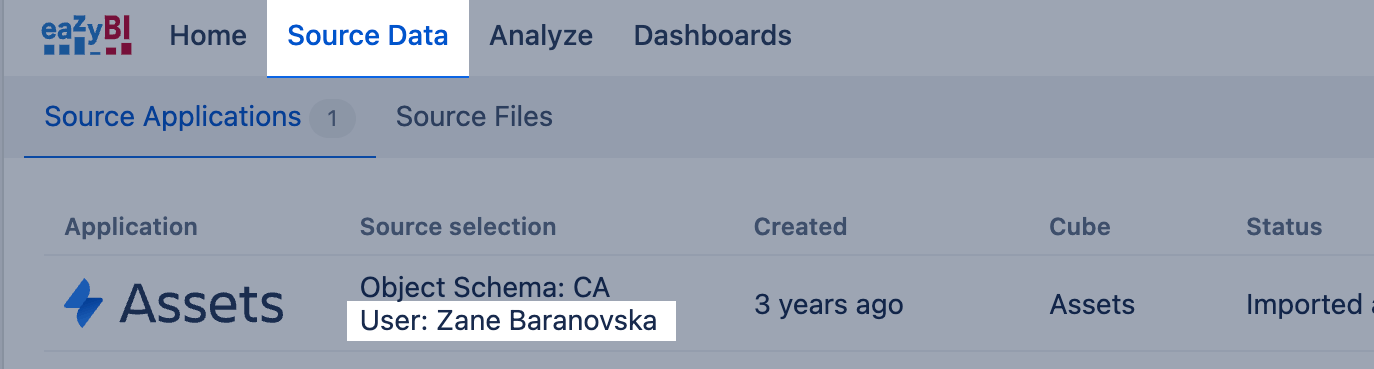
The new user has to be added to the account with Owner, User Admin, or Data Admin account user roles.
Then user should log in eazyBI, open Source tab and click Reset authorization.
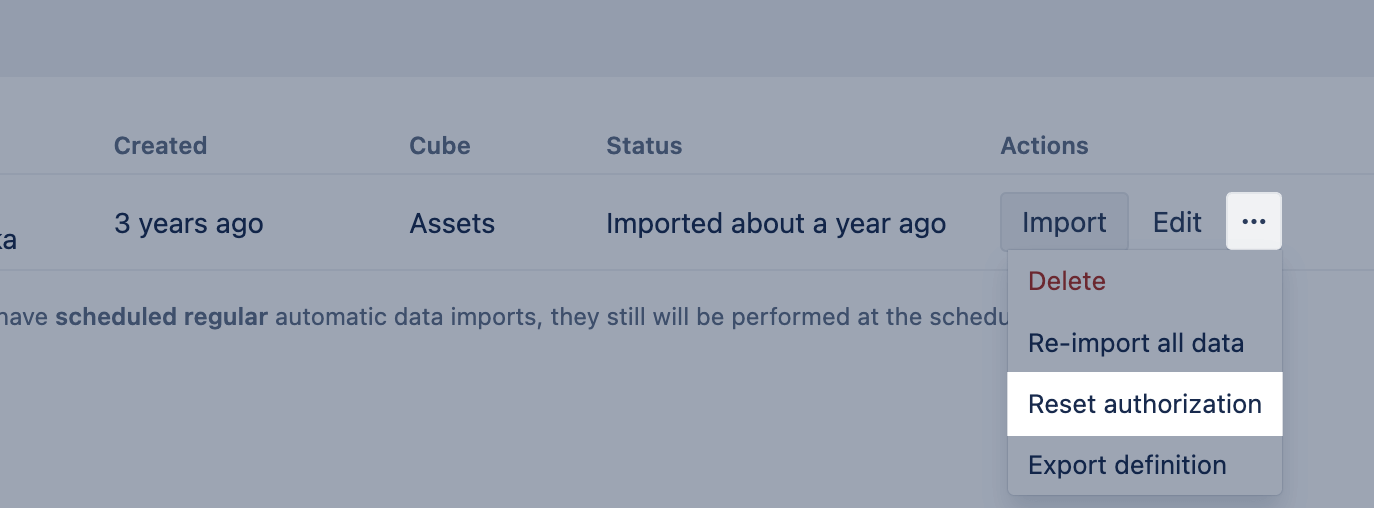
After approving this action, the Status will be changed to "Authorized" and a username of the new user will be visible under Source selection.
Open Edit import settings to select projects and custom fields available for the new user and perform data import.
After reset authorization, the user should run the first import manually. After the first manual import imports will run as scheduled automatically with the new user credentials.
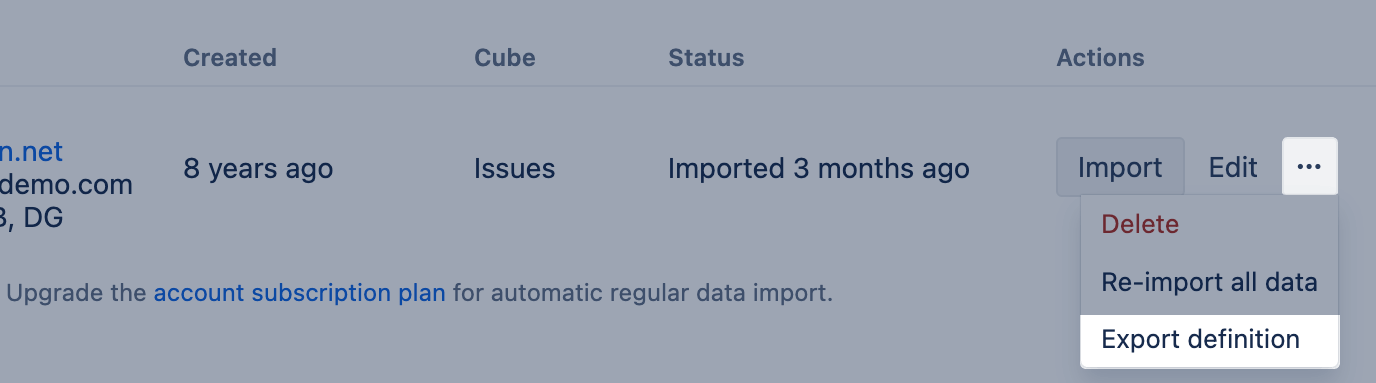
Export source application definition
With the source application definition export, you can share the Assets import options from one account with one or several others. We recommend using this option within the same eazyBI instance to ensure the same set of available projects (or spaces in Jira Cloud), integrations, and custom field names. Typical use cases include copying the settings of one account and applying them to a different set of projects, or creating a sandbox account to try out new solutions. However, if you would like to use one account as a template for multiple other accounts, consider using another option and create a Template account.
Training video
Training video on creating detailed reports with Asset data.
Slides: eCD25 Bringing Your Assets to Life with eazyBI.pdf